Connect CRM integration
GoHighLevel
Connect Outbound to your GoHighLevel workspace by creating an API key, confirming the right permissions, copying the matching location ID, and saving both values inside Outbound settings.
Keep the API key and location ID tied to the same GoHighLevel sub-account. Once configured, Outbound can use that connection for lead sync and related workflow automation.
Steps
Create a GoHighLevel API key
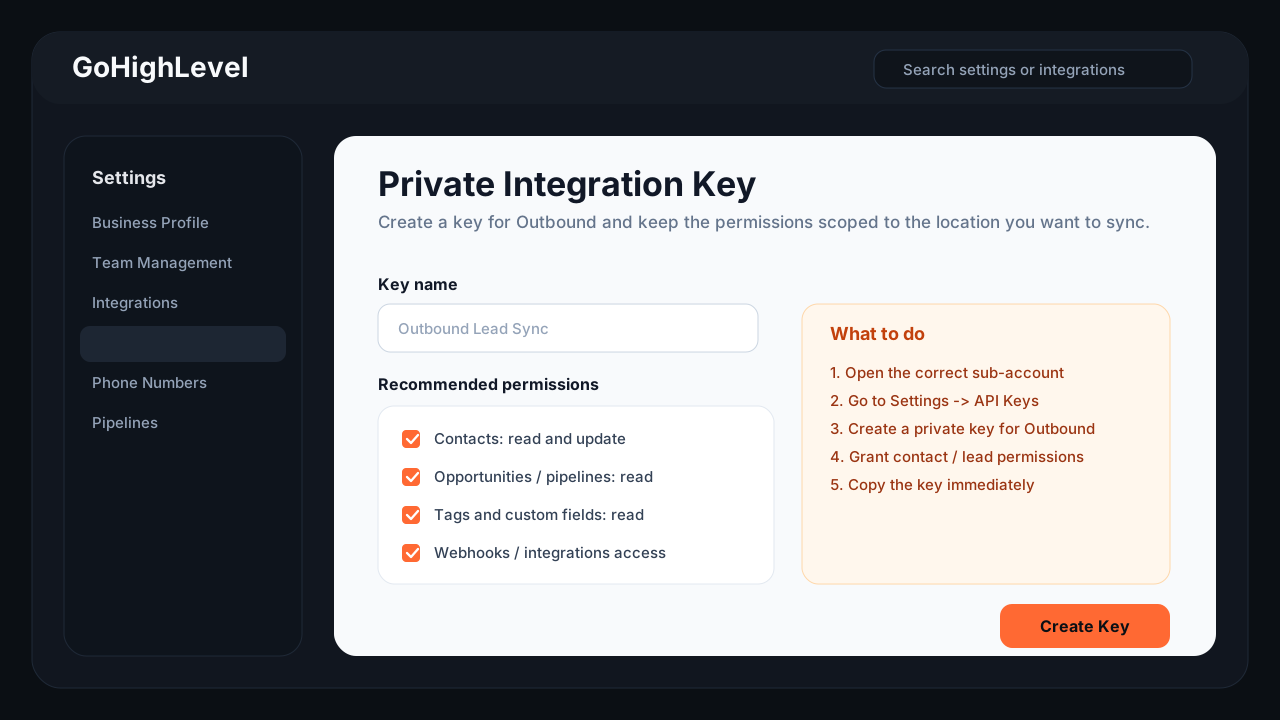
Log in to GoHighLevel and open the exact sub-account or location you want to connect to Outbound.
Go to the location Settings area, then open the API or integrations section and create a private API key for Outbound.
Grant the permissions needed for contact and lead sync, then copy the key immediately after creation.
Get the matching location ID
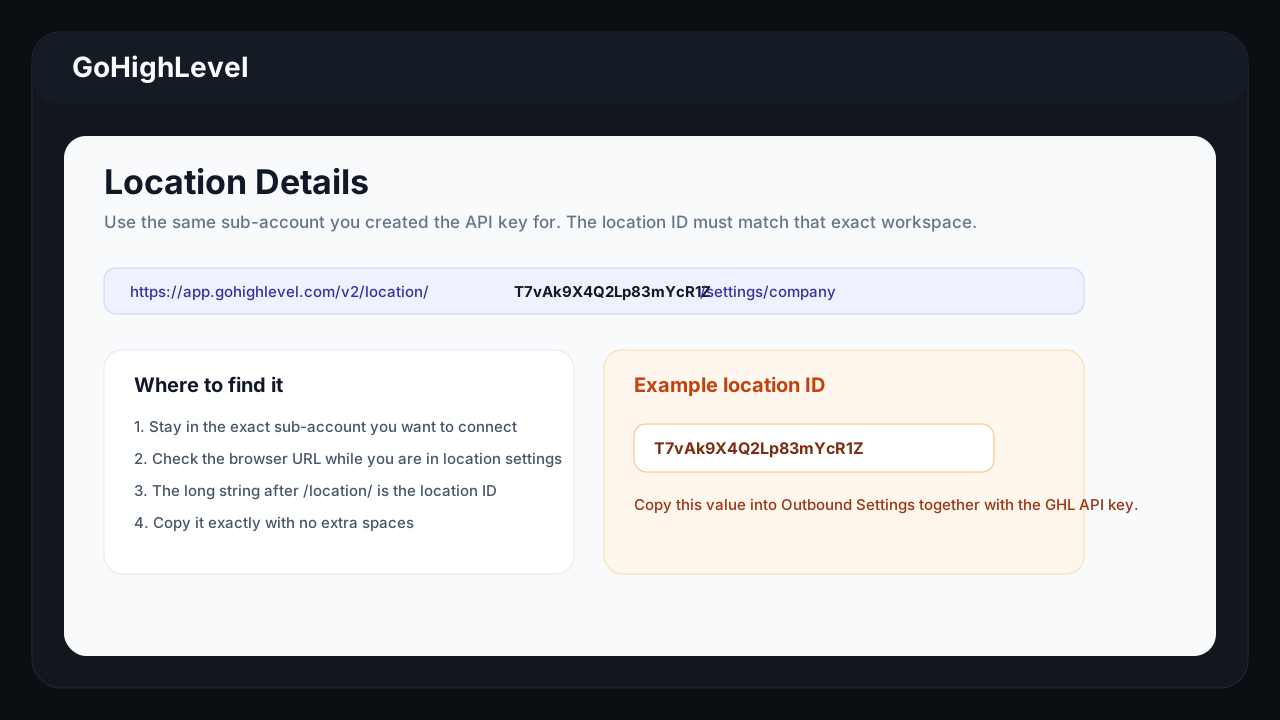
Stay inside the same GoHighLevel sub-account where you created the key. The location ID must match that same workspace.
In many GHL accounts, the location ID appears in the browser URL, location details page, or integration settings. It is usually a long alphanumeric string.
Copy the full location ID exactly, with no extra spaces before or after it.
Configure GHL inside Outbound settings
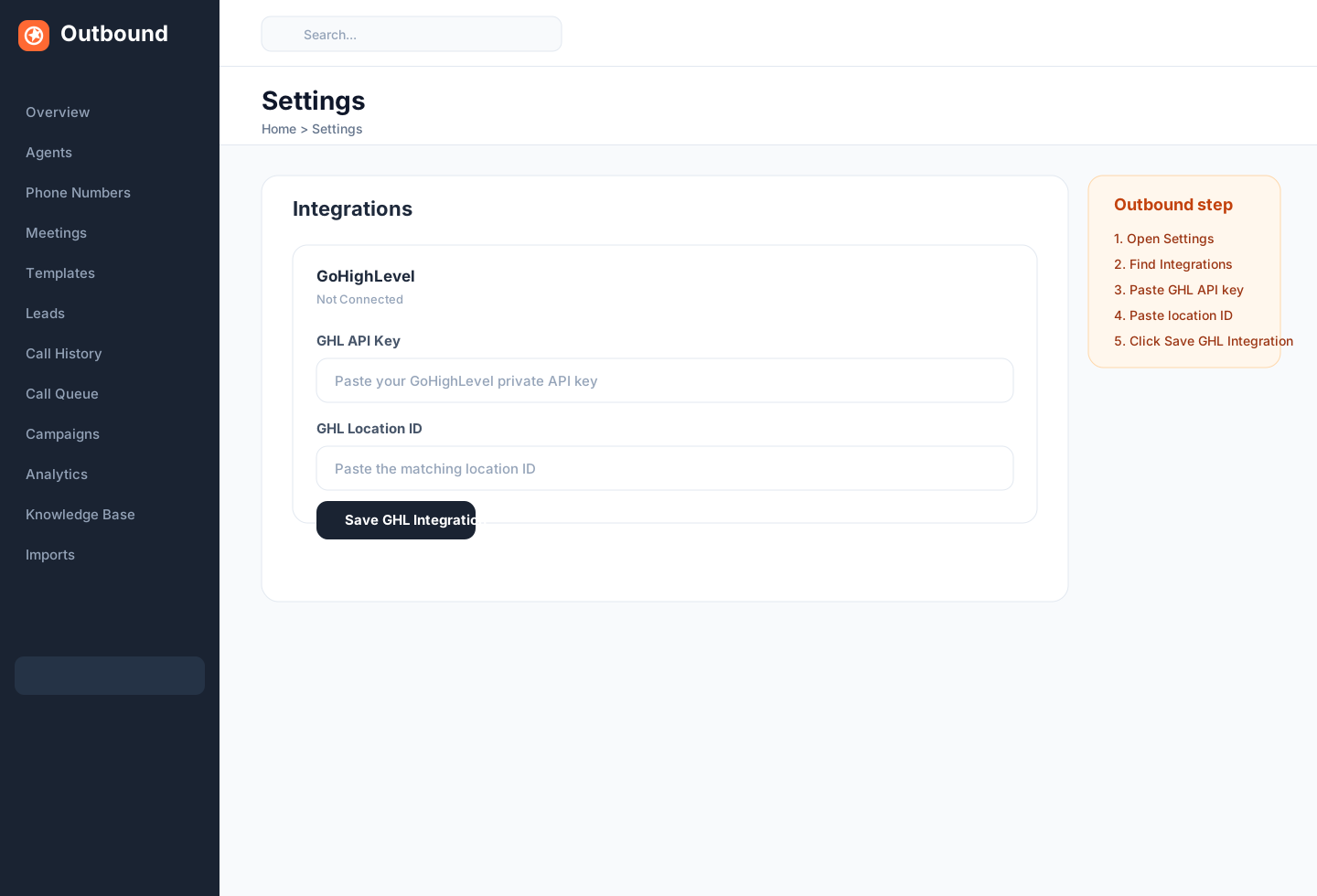
Open Outbound Dashboard -> Settings -> Integrations.
Paste the GHL API Key into the first field and the GHL Location ID into the second field.
Click Save GHL Integration. Once saved, Outbound can use that GHL connection for lead sync and related workflows.